
If you want to make an AI-generated adult video on your own hardware, the first decision is not which prompt to write. It is which video model and installation route to use. The model determines whether you start from text, an image, reference footage, or audio; the workflow determines which files you need and how much hardware you will use.
We have tested adult-content generation with publicly released versions of the five model families below: Wan 2.2, MiniMax H3, LTX-2, HunyuanVideo 1.5, and CogVideoX 1.5. This is an overview of those options and the setup steps they share—not a claim that one model wins every shot. We are not covering community NSFW fine-tunes here; readers who want a specialized checkpoint can research those separately after they have the base workflow running.
Use only fictional adults or real adults who have explicitly agreed to this use of their likeness. Keep source images, voices, and motion references authorized, and check the relevant model license and publication rules before distributing anything.
Which Open-Weight NSFW Video Model Should You Install?
Start by choosing the input you actually have. Text-to-video (T2V) begins with a description; image-to-video (I2V) animates a prepared frame and is often the easier way to keep a character's appearance stable. Audio or video references need a model and workflow that explicitly accepts them. The five model families below are not interchangeable files: download the checkpoint for the task you intend to run.
| Model | Choose it for | Where to start |
|---|---|---|
| Wan 2.2 | Text or image input. TI2V-5B handles both; the larger A14B releases have separate T2V and I2V checkpoints. | Use the ComfyUI Wan 2.2 template for a visual setup. |
| MiniMax H3 | Video with synchronized audio. The local H3-Base FL2VA checkpoint takes text and optional first/last frames; Ref2VA accepts reference media. | Follow the repository's local H3-Base instructions. Its 2K regeneration stage is a separate hosted component. |
| LTX-2 | Joint audio/video generation and more control from images or keyframes. | Use the official ComfyUI integration or the repository's Python inference package. |
| HunyuanVideo 1.5 | Text-to-video and image-to-video with the 8.3B model family. | Follow the official setup guide or its linked ComfyUI workflow; select T2V or I2V weights to match the task. |
| CogVideoX 1.5 | A defined T2V/I2V split: CogVideoX1.5-5B for text, CogVideoX1.5-5B-I2V for image input. | Use the repository's Quick Start and download the matching 1.5 checkpoint. |
The practical difference is the input workflow, not a universal “best” ranking. If you have a strong still image, start with an I2V checkpoint. If you need generated audio in the same pass, look at H3 or LTX-2. If you want to learn a widely documented node workflow first, Wan 2.2 TI2V-5B is a straightforward entry point. H3-Base's local 768p release should not be confused with MiniMax's full 2K service pipeline.
How to Install and Configure a Local Video Model
There is no single installer for every model, but the setup sequence is consistent. Treat the model's official repository or linked workflow as the source of truth for its exact file names and supported hardware. These steps take you from an empty machine to a first test clip:
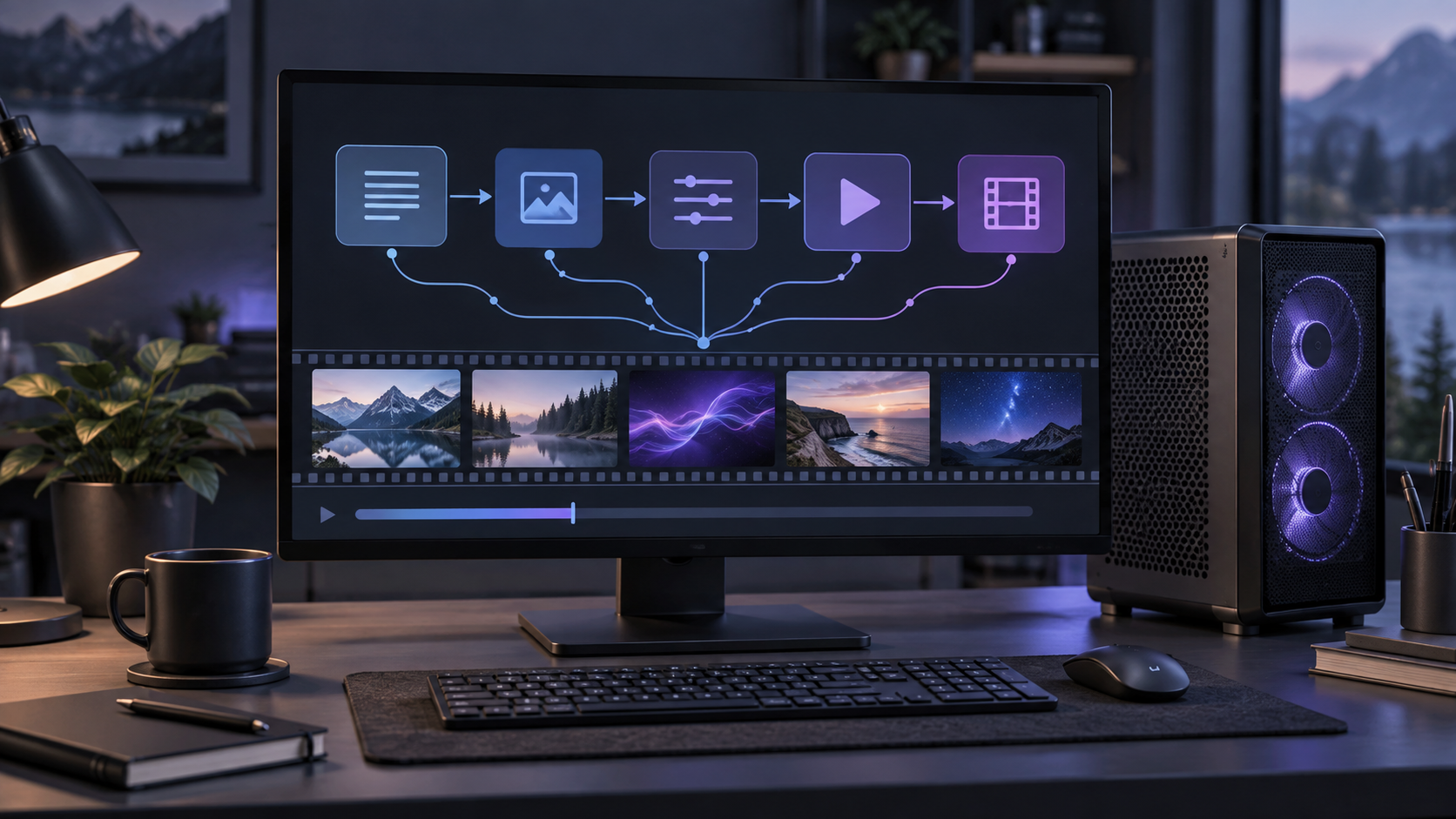
- Choose the task and checkpoint. Decide T2V, I2V, first/last-frame, or reference-driven generation before downloading gigabytes of weights. For example, CogVideoX1.5-5B-I2V is not the same checkpoint as its T2V counterpart.
- Choose the runtime. Install current GPU drivers and either ComfyUI plus the model's official template/integration, or the official repository's Python environment and inference script. Do not mix file-placement instructions from one runtime with another.
- Download every required component. Get the matching video checkpoint, text encoder, VAE, and any audio or image encoders named by that workflow. In ComfyUI, diffusion models, text encoders, and VAEs normally live in their corresponding
models/subfolders. Some repositories instead expect a complete checkpoint directory. - Load the workflow and fix paths. Open the official template, select the downloaded files in every loader, and confirm there are no missing-node or missing-model warnings. An incompatible VAE or encoder can fail even when the main checkpoint loaded correctly.
- Run a small first clip. Use the workflow's default settings, a short duration, and a resolution your GPU can handle. For I2V, add an image you are authorized to use. Check the output before increasing frames, resolution, or sampling cost.
- Save what worked. Keep the workflow file, checkpoint version, prompt, seed, aspect ratio, frame count, and output together. That gives you a reproducible baseline when you try another model or a community fine-tune.
Concrete Wan 2.2 example: In ComfyUI, open Workflow → Browse Templates → Video → Wan 2.2 5B video generation. Download the diffusion model, text encoder, and VAE listed in the official template guide; place them in models/diffusion_models, models/text_encoders, and models/vae. Select those files in the loader nodes, choose text or image input, and run a short preview. The exact same “checkpoint + supporting files + matching workflow + short test” logic applies to the other families, although their file layouts differ.
If you want to move beyond installation into a shot-by-shot production example, read our Wan 2.2 adult short-film workflow. It goes into character consistency, keyframes, motion references, dialogue, and editing 117 shots. This page stays at the model-selection and setup level.
What to Check When a Local Run Fails
Out of memory: First reduce resolution or frame count, then enable the offloading or lower-memory option documented for that model. Do not assume a smaller file from an unrelated release is a compatible replacement. Missing nodes: update ComfyUI and install the integration linked by the model's official project. Loader error: check the exact checkpoint, encoder, and VAE names and folders. Wrong input behavior: confirm that you selected the I2V rather than T2V checkpoint or workflow. Unstable output: return to the official example settings and change one variable at a time.
Once a short test works, think in individual shots rather than one long generation. Review motion, anatomy, consistency, and audio before adding clips to an editor. That is where a local setup becomes useful: you can repeat a shot with the same files and settings instead of rebuilding the entire project.
What If You Do Not Want to Install Anything?
A hosted AI porn video generator removes the GPU setup and model downloads. Compare tools by input type, export options, privacy, and price before uploading a reference image. That route is convenient, but the rest of this guide focuses on models you can run yourself.
Conclusion
All five publicly released model families covered here produced NSFW video in our tests. The useful question is which input mode and installation path fit your project: Wan 2.2 for a well-documented T2V/I2V start, H3 or LTX-2 when audio is part of the generation, or HunyuanVideo 1.5 and CogVideoX 1.5 for their own T2V/I2V workflows. Install the matching checkpoint and supporting files, reproduce the official example first, then build on that working baseline. Keep consent and age checks in place throughout.
FAQ
Can I make an AI porn video without installing software?
Yes. A hosted generator runs the model for you. Our AI porn video generator directory is a starting point for comparing those tools.
What is the easiest open-weight model to try locally?
Start with Wan 2.2 TI2V-5B in ComfyUI if you want one official template for both text and image input. The template tells you exactly which diffusion model, text encoder, and VAE to install.
Is MiniMax H3 an open model I can run locally?
Yes. MiniMax releases local H3-Base checkpoints for FL2VA and Ref2VA. Those generate at 768p; the official 2K workflow additionally uses hosted components. See the local deployment guide.
Do I need a separate NSFW fine-tune?
No. The publicly released model versions discussed here produced adult-content output in our tests. Community fine-tunes are optional and outside this overview; install the base model and verify its workflow first.
Why does my image-to-video workflow ignore the image?
Check that you downloaded an I2V-capable checkpoint and loaded an I2V workflow. With CogVideoX 1.5, for instance, the I2V checkpoint is separate from the T2V checkpoint. Also confirm the image loader is connected to the model's input path.
Can I use a real person's photo or voice?
Only with that adult person's explicit permission for this particular use. Never create or share sexualized likenesses of minors, and do not use someone else's identity without consent.