
Contents
- Lovense Content Auction in one minute
- Content Auction only works inside Co-Streaming Battle
- Step 1: Get both types of access
- Step 2: Create and submit an auction item
- Step 3: Wait for Listed status
- Step 4: Start the Battle and confirm both items
- Step 5: Viewers bid through VibeMate
- How the late-bid extension works
- Step 6: The winner makes the matching cam-site tip
- What happens if the winner does not pay?
- Step 7: Confirmation triggers private delivery
- The 72-hour dispute and settlement window
- Complete creator workflow checklist
- A hypothetical auction round
- Practical listing decisions for creators
- Common Content Auction misunderstandings
- What the official guide establishes
- Quick answers Lovense Content Auction is a Lovense Cam Extension feature that lets each model in a Co-Streaming Battle offer approved exclusive content for viewers to bid on. It runs as part of a Battle, and both participating models need access to Co-Streaming and Content Auction.
Cam101, Lovense’s creator-education site, published its official Content Auction tutorial on November 17, 2026. The tutorial documents the feature’s operating rules. It does not provide typical demand, winning bid values, conversion rates, or creator earnings.
Lovense Content Auction in one minute
The complete flow works like this:
- Both models obtain Co-Streaming access and Content Auction access.
- Each model creates an auction item in the Lovense Cam Extension.
- The item contains either one video or a set of 1–30 photos, along with a cover and listing details.
- The model waits for the content to be approved with Listed status.
- The models start a Co-Streaming Battle and select one of their own listed items each.
- Once both models confirm their items, a 30-second warm-up begins.
- Viewers bid through the Content Auction panel on the Battle viewing page in VibeMate.
- The winner has five minutes to tip the winning amount through the cam site associated with the model whose item they won.
- After the platform confirms payment, the content is delivered automatically and privately.
- The buyer has a 72-hour dispute window before the creator’s earnings settle.
Entering a bid does not deduct tokens. It sets the amount the winner must later pay as a cam-site tip. During bidding, viewers see the item’s cover rather than the complete photo set or video.
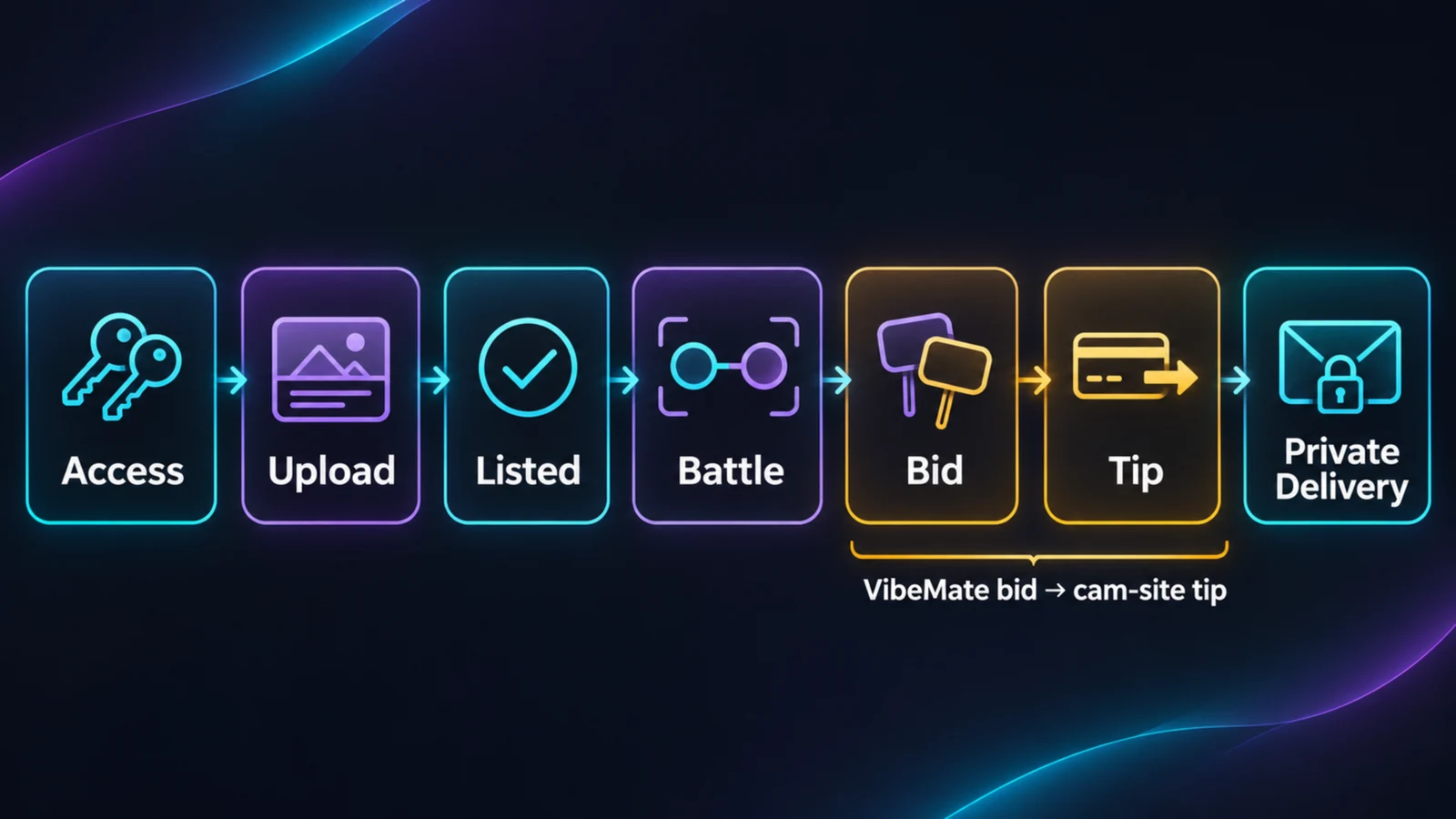
A VibeMate bid sets the winning amount; payment occurs later as a separate tip on the associated cam site before private delivery.
Content Auction only works inside Co-Streaming Battle
An ordinary livestream, a supported cam-site account, or the Lovense Cam Extension alone does not make Content Auction available. The feature adds an auction layer to Co-Streaming Battle.
Both models must independently have the two required access types. One model’s eligibility does not unlock the feature for the other, so check both accounts before scheduling a Battle.
Content Auction is separate from Lovense’s broader connected-device ecosystem. Toy interaction, remote controls, and other device features serve different purposes; NSFWAITool’s connected adult-toy guide provides that wider context. Studio Coach is another separate product, designed for studio operations and recommendations rather than Battle-based auctions. The Studio Coach explainer covers that distinction.
Step 1: Get both types of access
Each participating model needs:
- Co-Streaming access
- Content Auction access
Confirm both permissions on both accounts before preparing a joint session. Installing the extension, seeing Co-Streaming controls, or receiving a Battle invitation does not necessarily mean Content Auction has also been enabled.
Cam101’s tutorial is the appropriate place to check the current access procedure. It does not give a universal rollout schedule, guaranteed approval time, complete regional availability list, or assurance that every account will qualify.
Step 2: Create and submit an auction item
In the Lovense Cam Extension, follow this path:
Cam Site > Rules > Advanced Gameplay > Content Auction
A creator can upload either:
- One video
- One photo set containing 1–30 photos
The documented listing fields are:
- Cover: The preview viewers see while deciding whether to bid.
- Title: A short, identifiable name for the item.
- Description: A clear explanation of what the winning buyer will receive.
- Starting bid: The opening amount for bidding.
- Minimum bid increment: The smallest permitted increase between bids.
- Duration: How long bidding remains open before any qualifying late-bid extensions.
The cover matters because bidders cannot view the complete content during the auction. It should represent the offer accurately without revealing the whole item. Use the title and description to remove ambiguity, including whether the listing contains a video or photo set and how many photos are included.
Creators choose their own starting bids and increments. The tutorial does not identify a universally effective amount, so these values should suit the creator’s audience and content instead of being treated as a guaranteed way to raise earnings.
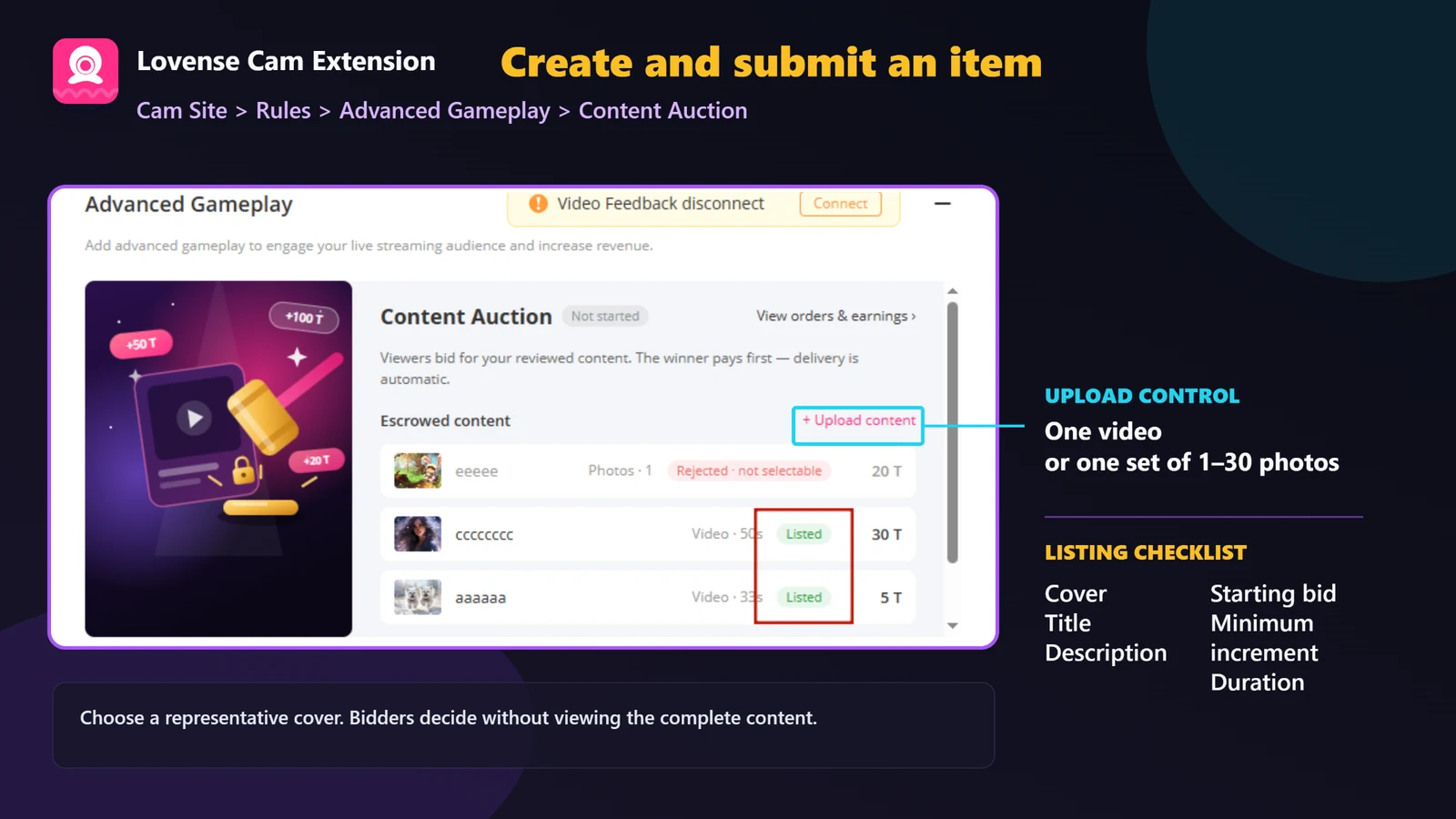
The real Content Auction area shows where to upload an item; complete the cover, title, description, starting bid, minimum increment, and duration during item setup.
Step 3: Wait for Listed status
An uploaded item cannot be selected immediately. It must first be approved and display Listed status.
Prepare listings in advance and check their status before the planned session. Cam101 does not document a fixed review time, so an item submitted immediately before going live may still be unavailable when the Battle begins.
If an item appears in the Content Auction area but cannot be selected, check its status first. A completed upload and a selectable Listed item are separate states.
Step 4: Start the Battle and confirm both items
Once both models have the required access and at least one Listed item, they can start or join a Co-Streaming Battle. Each model selects and confirms one item from their own listed content.
This produces two separate offers. Viewers supporting Model A bid for Model A’s item, while viewers supporting Model B bid for Model B’s item. The models are not contributing to one shared prize.
After both selections are confirmed, the system starts a 30-second warm-up. Models can use this time to verify the selected items and explain the auction process to viewers.
Step 5: Viewers bid through VibeMate
Viewers bid through the Content Auction panel on the Battle viewing page in VibeMate. According to the tutorial, viewers must be logged in to the corresponding cam site to participate.
Each model has five bidding seats. Early bids can fill those positions. Once all five are occupied, a sufficiently higher bid can replace the lowest seated bid. The displaced viewer loses their active position for that model unless they submit another qualifying bid.
Each viewer may bid for only one model in a given auction round. A viewer who chooses Model A cannot also occupy a seat for Model B during the same round.
Placing a bid does not deduct tokens. Payment happens after bidding closes, when the winner sends a matching tip through the relevant cam site.
Lovense Content Auction rules at a glance
| Rule | What happens | Practical effect |
|---|---|---|
| Separate model items | Each model selects and confirms their own Listed item | Viewers choose which model’s content to bid for |
| Five seats per model | Each item has five active bidding positions | The models do not share one five-seat pool |
| Lowest-seat replacement | A sufficiently higher bid can replace the lowest bid after all seats fill | A seated viewer may need to raise their bid to remain active |
| One model per viewer | A viewer may bid for only one model in that round | One viewer cannot hold positions on both sides |
| No deduction while bidding | Entering a bid does not deduct tokens | The winning bid still requires a separate cam-site payment |
| Late-bid extension | A bid in the final 15 seconds adds 15 seconds, up to three times | Qualifying late bids can delay the close, but only within the extension limit |
| Five-minute payment window | The winner must tip the matching amount on the corresponding cam site | Winning in VibeMate does not complete the purchase |
| Second-highest fallback | If the winner does not pay, the opportunity passes to the second-highest bidder | The first winner is not the only possible buyer |
| Confirmed-payment delivery | Content is delivered automatically and privately after confirmation | A bid alone does not trigger delivery |
| 72-hour dispute period | The buyer can raise a dispute before earnings settle | Delivery and final settlement happen on different timelines |
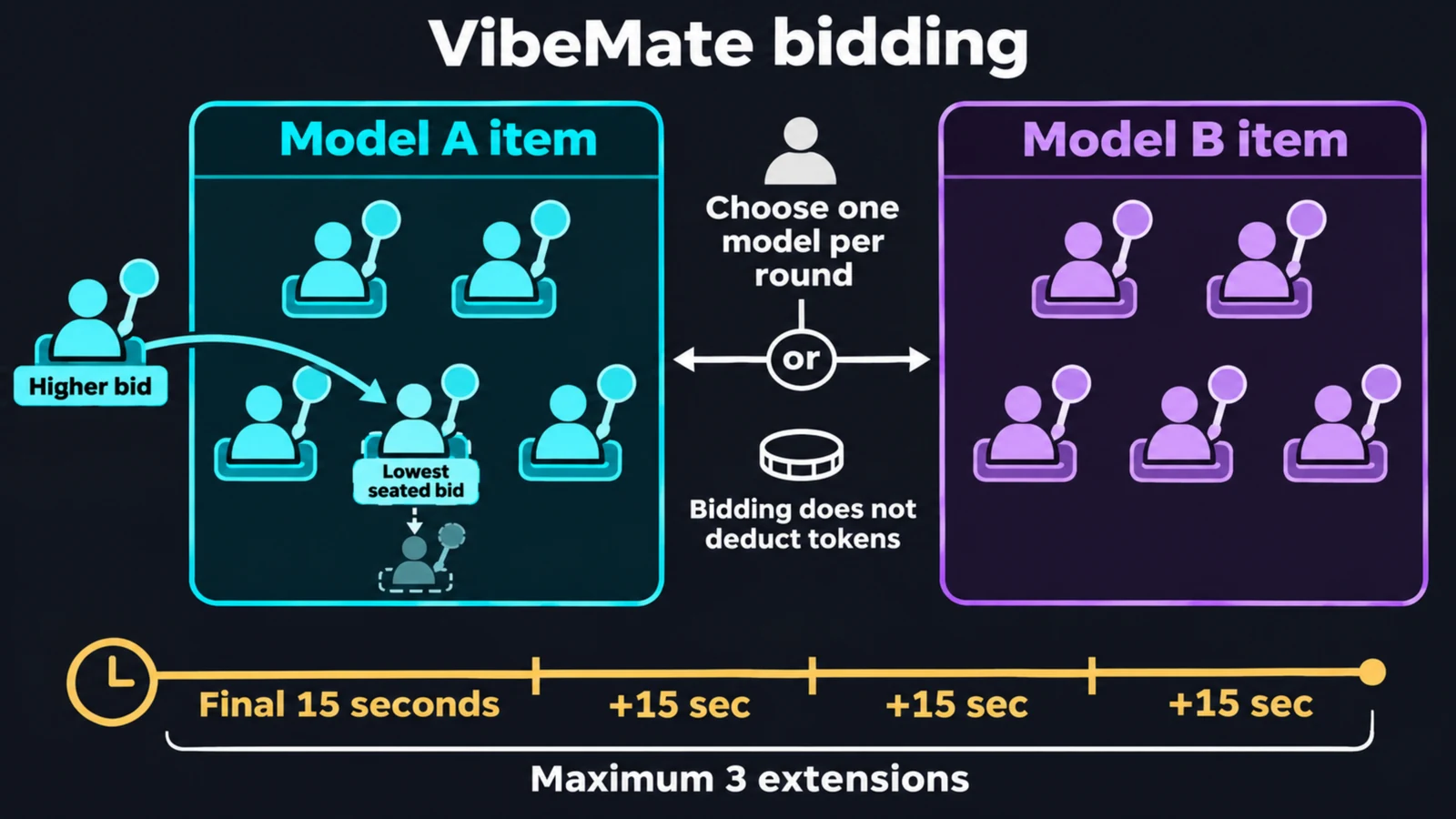
Each model has its own five active bidding seats; qualifying higher bids can replace the lowest seated bid, while late bids can extend the auction by 15 seconds no more than three times.
How the late-bid extension works
A bid placed during the final 15 seconds adds another 15 seconds to the auction. This can happen up to three times.
For example, suppose a qualifying bid arrives when the timer shows 10 seconds. The auction gains 15 seconds. Another qualifying bid during the final 15 seconds of that extended period can trigger a second extension, and the same can happen once more. After the third extension, the documented limit has been reached.
This gives other seated bidders time to respond without allowing the auction to continue indefinitely.
Step 6: The winner makes the matching cam-site tip
When bidding ends, the highest eligible bidder has five minutes to pay. The viewer sends the winning amount as a tip on the cam site associated with the model whose content they won.
The two parts of the transaction are handled separately:
- VibeMate records the auction bid.
- The corresponding cam site processes the matching tip.
A winning VibeMate bid does not confirm payment. The viewer should keep the relevant cam-site session accessible, verify the model and winning amount, and send the matching tip within five minutes.
Models should explain this process before bidding closes, particularly when viewers are using the feature for the first time. Otherwise, a winner may incorrectly wait for tokens to be deducted automatically.
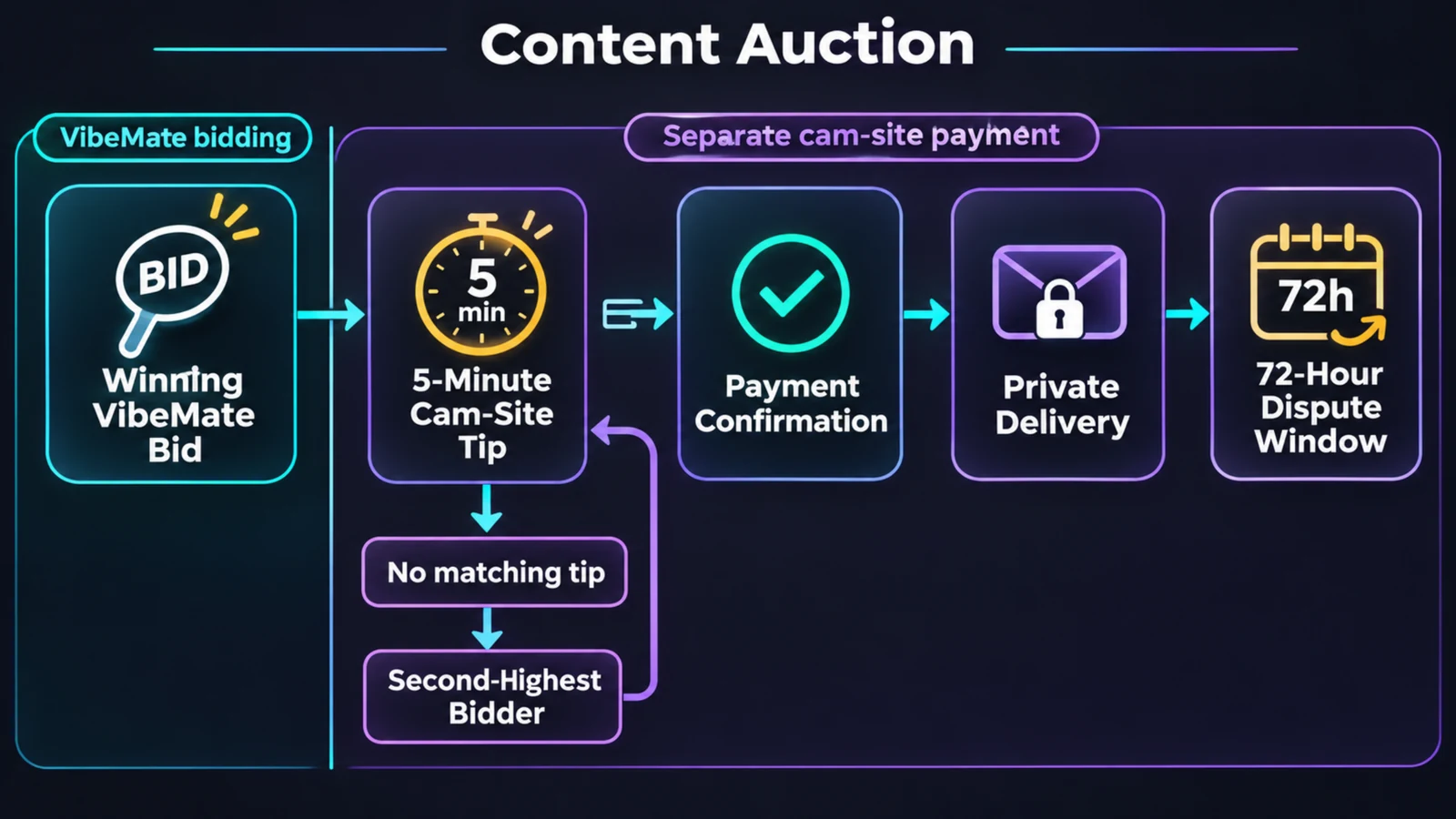
A winning VibeMate bid is not payment; private delivery follows only after the matching cam-site tip is confirmed.
What happens if the winner does not pay?
If the winner fails to send the matching tip within five minutes, the purchase opportunity passes to the second-highest bidder.
The fallback transfers the opportunity; it does not automatically charge anyone. The end of the payment timer also does not mean delivery has occurred. Delivery requires a confirmed matching payment from the eligible buyer.
Step 7: Confirmation triggers private delivery
Once the corresponding cam platform confirms the matching tip, the purchased content is delivered automatically and privately. Cam101 also documents buyer access through VibeMate > My Wallet.
Delivery depends on payment confirmation. Placing the bid or finishing first is not enough. The tutorial does not establish a specific file format, download right, access duration, watermark rule, or forwarding restriction, so those details should not be assumed.
When the documented payment and delivery process works normally, the creator does not need to fulfill the purchase manually through direct messages.
The 72-hour dispute and settlement window
Cam101 documents a 72-hour period during which the buyer can raise a dispute before the creator’s earnings settle. This period is separate from delivery timing.
The sequence is:
- The winning bidder sends the matching cam-site tip.
- The platform confirms payment.
- The system delivers the content automatically and privately.
- The 72-hour dispute period remains in effect.
- Earnings settle after the window if the order proceeds without a dispute.
Content can therefore be delivered before the creator’s earnings are finally settled. The tutorial does not fully describe how every dispute is adjudicated or the outcome of each possible case.
Complete creator workflow checklist
- Confirm that both models have Co-Streaming and Content Auction access.
- Open Lovense Cam Extension > Cam Site > Rules > Advanced Gameplay > Content Auction.
- Upload one video or a photo set containing 1–30 photos.
- Add the cover, title, description, starting bid, minimum increment, and duration.
- Wait for the item to receive Listed status.
- Start or join the Co-Streaming Battle.
- Have both models select and confirm one of their own Listed items.
- Use the 30-second warm-up to verify the selections and explain the process.
- Let viewers bid through the Content Auction panel in VibeMate.
- After bidding closes, direct the winner to send the matching cam-site tip within five minutes.
- Allow platform confirmation to trigger automatic private delivery.
- Keep useful listing, auction, and payment records through the 72-hour dispute period.
The final step is practical preparation. Cam101 does not mandate a particular record format.
A hypothetical auction round
Consider a Battle between Model A and Model B. Each has confirmed a separate Listed photo set. Viewers see the corresponding covers and descriptions in VibeMate.
Five viewers bid for Model A, filling all five seats. A sixth viewer submits a bid high enough to replace the lowest seated offer, leaving the displaced bidder without an active seat. Meanwhile, a viewer who has already bid for Model A tries to support Model B as well. The one-model-per-viewer rule prevents that viewer from bidding on both items during the same round.
With 12 seconds left, a qualifying bid arrives for Model B and adds 15 seconds to the timer. Another qualifying bid during the new final 15-second period triggers a second extension. The auction later closes with one winner for each model’s content.
Model A’s winner sends the matching tip on Model A’s corresponding cam site within five minutes. The platform confirms it, and the buyer receives Model A’s content privately.
Model B’s first-place bidder misses the payment window. The opportunity then passes to the second-highest bidder, who sends the required matching tip. Confirmation of that payment triggers private delivery. Both completed orders remain subject to the documented 72-hour dispute window.
This scenario illustrates how the rules interact; it does not represent an observed session or typical bidding activity.
Practical listing decisions for creators
Choose content that works as a clearly defined private deliverable. The listing should tell viewers whether they are bidding on one video or a photo set and, for a set, how many photos it contains.
Use a cover that represents the content accurately without revealing the entire item. A vague cover makes the offer difficult to understand, while an overly revealing one can reduce the reason to bid. The title should identify the item quickly, and the description can clarify its format, theme, and contents.
Set the starting bid, increment, and duration according to your audience and Battle format. A shorter duration can keep the auction closely tied to the live Battle. A longer duration gives viewers more time to notice the listing and decide whether to bid. Neither option guarantees demand.
Content Auction is one of several creator monetization structures. An auction purchase works differently from referral revenue such as the model discussed in NSFWAITool’s creator monetization article. Other creator programs can have different eligibility, distribution, and payment rules, as shown in the Pornhub creator-program guide. Evaluate each program according to its own documented workflow.
Common Content Auction misunderstandings
- “Content Auction is available in every livestream.” It runs within Co-Streaming Battle and requires separate access.
- “If one model has access, both can use it.” Each participating model needs Co-Streaming and Content Auction permissions.
- “An uploaded item is ready immediately.” The item must be approved and display Listed status.
- “Bidders see all the content.” They see the cover, not the complete photo set or video.
- “Bidding spends tokens immediately.” Entering a bid does not deduct tokens.
- “The winning bid is the payment.” The winner must still send a matching cam-site tip.
- “A viewer can bid for both models.” Each viewer can choose only one model per round.
- “Late bidding can extend the auction forever.” Each extension lasts 15 seconds, with a maximum of three extensions.
- “If the winner does not pay, the auction simply disappears.” The opportunity passes to the second-highest bidder.
- “Winning triggers delivery.” Delivery follows confirmation of the matching payment.
- “Delivery means earnings are already settled.” A 72-hour dispute period remains before settlement.
What the official guide establishes
The November 17, 2026 Cam101 tutorial documents the access requirements, listing process, approval state, Battle selection, bidding mechanics, payment window, fallback procedure, delivery flow, and dispute period.
It does not provide typical bid amounts, demand, conversion rates, dispute frequency, account-wide availability, or creator income. NSFWAITool’s review methodology explains why documented product behavior should be kept separate from performance claims. Content Auction can be described accurately without presenting the feature as an earnings guarantee.
Quick answers
What is Lovense Content Auction?
It is a Lovense Cam Extension feature that allows each model to offer approved exclusive photos or a video during a Co-Streaming Battle.
Can it be used in an ordinary livestream?
It operates within Co-Streaming Battle rather than as a standalone auction for ordinary livestreams.
What access do models need?
Both participating models need Co-Streaming access and Content Auction access.
What content can be uploaded?
One video or one photo set containing 1–30 photos.
What does Listed mean?
Listed is the approved status an item needs before it can be selected for a Battle auction.
Where do viewers bid?
In the Content Auction panel on the Battle viewing page in VibeMate.
How many bidding seats are available?
Each model has five seats. Once they are full, a sufficiently higher offer can replace the lowest seated bid.
Can a viewer bid for both models?
No. A viewer can bid for only one model during that auction round.
Does bidding deduct tokens?
No. The winner later pays the matching amount as a tip on the corresponding cam site.
Why can the auction clock extend?
A qualifying bid in the final 15 seconds adds 15 seconds, up to a maximum of three extensions.
What if the winner misses the payment window?
After five minutes without the matching tip, the purchase opportunity passes to the second-highest bidder.
When is the content delivered?
The content is delivered automatically and privately after the cam platform confirms the matching payment.
How long is the dispute period?
Cam101 documents a 72-hour dispute window before the creator’s earnings settle.
Before scheduling a Content Auction Battle, verify both access types on both model accounts. Each model should also prepare at least one approved Listed item with an accurate cover and complete listing details.